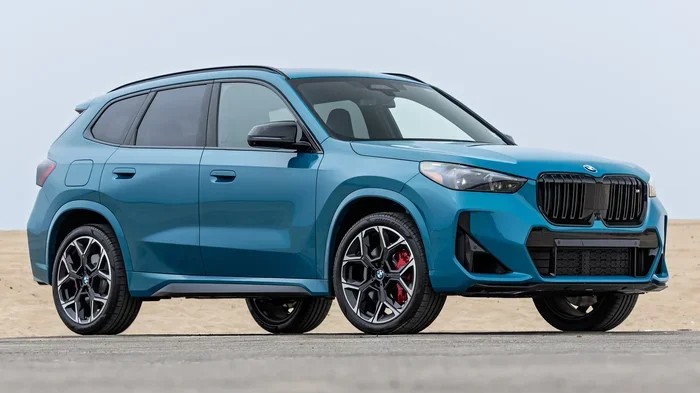
Featured image for BMW X1 2025 dashboard interior
Image source: autosnuff.com
Checking mileage on your BMW X1 2025 is straightforward thanks to the advanced iDrive 9 system and fully digital instrument cluster. You can view the total odometer reading directly behind the steering wheel or navigate the central touchscreen for detailed trip data. This guide covers every method, including remote checks via the My BMW App, helping you track service intervals, fuel economy, and verify vehicle history with confidence.
So, you just slid into the driver’s seat of the new BMW X1 2025. It looks sharp, feels premium, and that curved display is glowing. But now you need to know the most basic stat: how many miles are on the clock? Whether you are tracking your commute, calculating fuel economy, checking if you are due for service, or verifying the reading on a certified pre-owned model, finding that number is priority one. The good news? BMW has made it incredibly accessible, but they have also tucked extra data layers into the new iDrive 9 operating system that are worth knowing about.
This guide walks you through every single way to check mileage on BMW X1 2025 models. We will cover the digital instrument cluster, the central touchscreen, the smartphone app, and even the heads-up display. We will also explain the difference between total mileage and trip meters, why this data matters for your warranty, and what to look for if you are buying used. Let’s dive in.
Key Takeaways
- Primary Location: The total odometer is permanently displayed on the digital instrument cluster behind the steering wheel.
- iDrive 9 Menu: Access detailed trip data, fuel economy, and range via the “Vehicle” or “Trip” menus on the central display.
- Remote Access: The My BMW App allows you to check current mileage and vehicle status from your smartphone.
- Trip Meters: Learn to distinguish between Trip A, Trip B, and the total odometer for accurate tracking.
- Service Intervals: Mileage directly triggers Condition Based Servicing (CBS) alerts for oil changes and inspections.
- Used Car Verification: Always cross-reference digital readings with vehicle history reports when buying a pre-owned 2025 X1.
- Heads-Up Display: Optional HUD can project the odometer reading onto the windshield for eyes-forward monitoring.
📑 Table of Contents
- 1. The Quickest Way: Digital Instrument Cluster (Live Cockpit Plus)
- 2. Deep Dive via iDrive 9 Central Display
- 3. Remote Monitoring: My BMW App
- 4. Understanding Trip Meters vs. Total Odometer
- 5. Heads-Up Display (HUD): Eyes on the Road
- 6. Why Mileage Matters: Service, Warranty & Resale
- 7. Buying a Used 2025 X1: Verifying True Mileage
- 8. Fuel Economy & Range: Using Mileage Data Smartly
- 9. Troubleshooting: “My Mileage Disappeared!”
- 10. Advanced: Coding & Customization (For Tech Enthusiasts)
- Conclusion
1. The Quickest Way: Digital Instrument Cluster (Live Cockpit Plus)
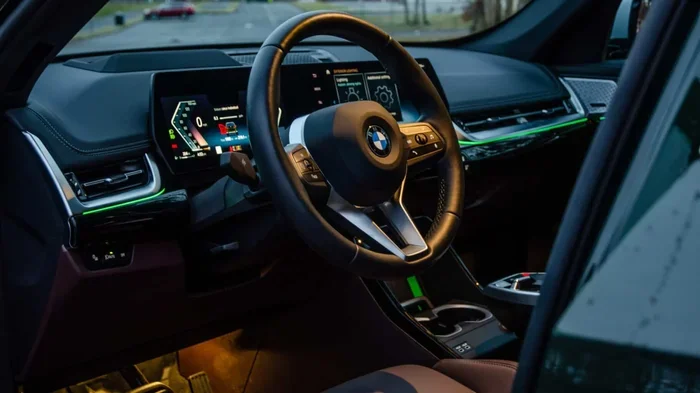
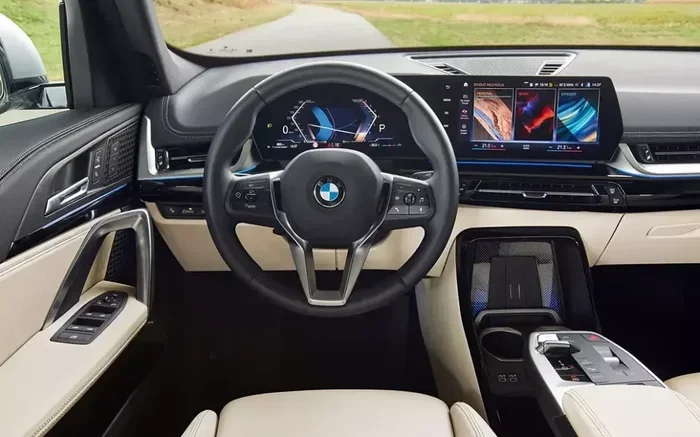
The fastest place to see your total mileage is right in your direct line of sight. The 2025 X1 comes standard with the BMW Live Cockpit Plus. This features a 10.25-inch digital display behind the steering wheel. Unlike older cars with physical needles, this screen is fully configurable, but the odometer is almost always visible.
Default Layout View
When you start the car (or even just unlock it and open the door on some settings), the cluster wakes up. In the default “Classic” or “Navigation” view, look at the bottom center or bottom right of the speedometer ring. You will see a small digital readout labeled ODO or KM/MI. This is your lifetime total. It does not reset. It is the legal record of the vehicle’s distance traveled.
Using Steering Wheel Controls to Cycle Views
If you don’t see it immediately, or if you switched to a “Sport” or “Minimal” view that hides it, use the left steering wheel buttons.
- Press the Back/Menu button (the one with the four squares or list icon) on the left spoke.
- Use the scroll wheel or touchpad to navigate to “Trip Data” or “Vehicle Info”.
- Select Odometer.
The cluster lets you prioritize what you see. You can actually add the odometer to the “Minimal” view in the settings so it never disappears. It is a handy customization if you track mileage for work reimbursement.
Quick Tip: Unit Conversion
If you are importing the vehicle or traveling across borders, you might need to switch between miles and kilometers. Go to Settings > Units > Distance on the central screen (iDrive). This changes the cluster readout instantly.
2. Deep Dive via iDrive 9 Central Display
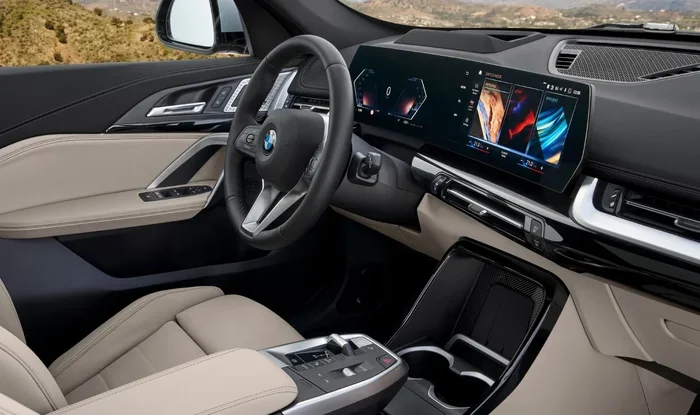
The 10.7-inch central touchscreen runs iDrive 9 (often called BMW Operating System 9). This is where you find the granular data. The interface uses a widget-based home screen, so the exact tile location might vary based on your personalization, but the menu structure is consistent.
Visual guide about BMW X1 2025 dashboard interior
Image source: evsbuzz.com
Accessing the “Vehicle” App
- Tap the App Menu icon (grid of dots) on the home screen.
- Find and tap the Vehicle app icon (usually a car silhouette).
- Select Vehicle Status or Trip Data.
Here you get a wealth of info beyond just the total odometer. You will see:
- Total Mileage (Odometer): The master number.
- Trip A / Trip B: Resettable counters for specific journeys.
- Distance Since Start: Resets every time you turn the car off for a significant period.
- Average Consumption: MPG or L/100km for the current trip.
- Range: Estimated miles remaining based on current driving style.
Trip Computer Details
Inside the Trip Data menu, you can long-press or tap the “i” icon next to Trip A or Trip B. This reveals average speed, driving time, and idle time. This is gold for hypermilers or anyone trying to beat their previous MPG record. You can reset Trip A and Trip B independently here—usually by pressing and holding the “Reset” button on the screen or using the left stalk button (if equipped) or steering wheel controls.
Customizing the Home Screen Widget
Want mileage on the main dashboard view? Enter “Edit Mode” on the iDrive home screen (long press an empty spot or tap the edit pencil icon). Drag the “Vehicle Status” or “Trip” widget to the top row. Now you see the odometer the second Apple CarPlay or Android Auto closes.
3. Remote Monitoring: My BMW App
This is a game changer for the 2025 model year. The My BMW App (available on iOS and Android) connects to your car via BMW ConnectedDrive. You do not need to be in the car to check the mileage. This is perfect for fleet managers, parents, or just checking if you have enough range for tomorrow’s trip while lying in bed.
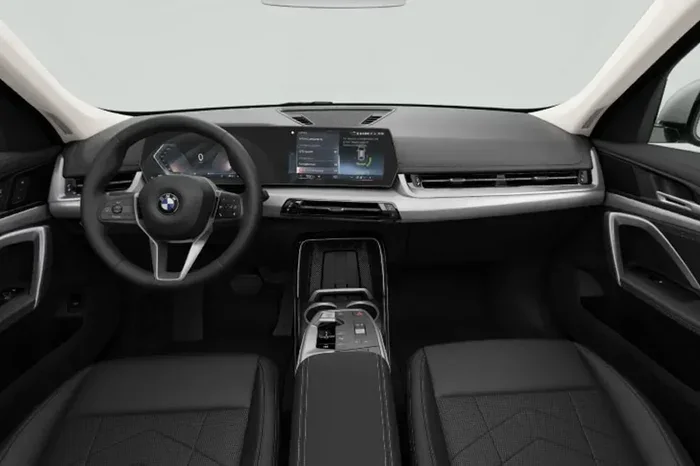
Visual guide about BMW X1 2025 dashboard interior
Image source: imgcdn.oto.com
Setup Requirements
- BMW ID registered to the vehicle.
- Active ConnectedDrive services (usually free for a trial period on new 2025 models).
- Vehicle parked with cellular reception (4G/5G modem built-in).
Steps to Check Remotely
- Open the My BMW App.
- Select your X1 from the garage (if you have multiple BMWs).
- Tap the Status or Vehicle tab at the bottom.
- Look for Mileage / Odometer under the “Vehicle Data” section.
The app updates the mileage reading typically within a few minutes of the car being turned off and locked. It also shows remaining range, fuel level (or battery charge for xDrive25e plug-in hybrid), tire pressures, and lock status. If you have the Remote Software Upgrade feature, the app will also notify you if a new update is ready, which sometimes resets trip counters—good to know!
Expert Insight: App vs. Cluster Discrepancy
Occasionally, the app might show a slightly different number (usually 1-2 miles off) compared to the cluster. This is normal latency. The cluster is the “source of truth.” The app pulls the last reported value from the BMW backend server. Always trust the physical car for legal documents.
4. Understanding Trip Meters vs. Total Odometer
This confuses a lot of new BMW owners. The 2025 X1 tracks distance in three distinct ways. Knowing the difference saves headaches when calculating expenses or fuel logs.
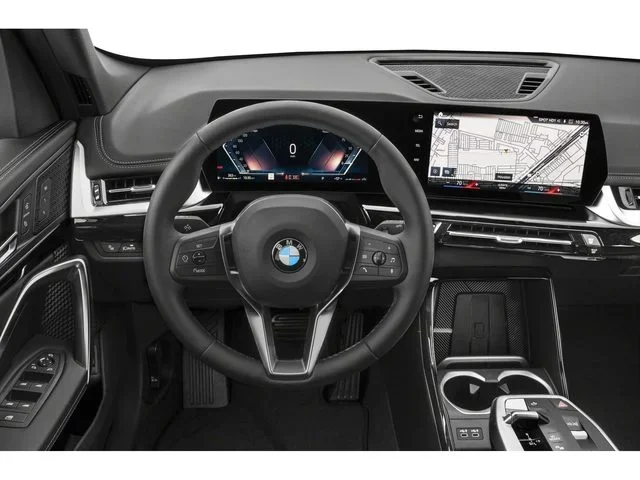
Visual guide about BMW X1 2025 dashboard interior
Image source: images.dealer.com
The Legal Odometer (Total)
Cannot be reset. Ever. It is stored in multiple control modules (CAS, Instrument Cluster, BCU) for tamper detection. This is the number on your title, registration, and service records. If this number looks wrong on a used car, walk away.
Trip A and Trip B (Resettable)
These are your tools. Trip A is great for tank-to-tank fuel economy tracking. Reset it every fill-up. Trip B is perfect for longer journeys—like a road trip from Chicago to Denver—or tracking mileage between oil changes. You can rename these in iDrive 9 (e.g., “Commute” or “Vacation”) for clarity.
“Since Start” / “Since Refuel” (Automatic)
The car automatically tracks distance since the last ignition cycle (Since Start) and since the last detected fueling event (Since Refuel). The fuel detection uses the fuel level sensor algorithm. It is surprisingly accurate but can glitch if you only add a splash of gas (under 2 gallons). These reset automatically; you cannot manually clear them.
Comparison Table: Mileage Displays on 2025 X1
| Display Type | Location | Resettable? | Best For |
|---|---|---|---|
| Total Odometer | Cluster, iDrive, App | No | Legal, Resale, Warranty |
| Trip A | Cluster, iDrive | Yes (Manual) | Per Tank MPG |
| Trip B | Cluster, iDrive | Yes (Manual) | Long Trips / Service Intervals |
| Since Start | iDrive Trip Menu | Auto (Ignition Off) | Daily Commute Tracking |
| Since Refuel | iDrive Trip Menu | Auto (Fuel Event) | Real-world Range Calculation |
5. Heads-Up Display (HUD): Eyes on the Road
If your 2025 X1 is equipped with the optional BMW Head-Up Display, you can project the odometer onto the windshield. This keeps your eyes forward. In the HUD settings menu (accessed via iDrive > Display > Head-Up Display), you can choose which “widgets” appear. The standard layout shows speed and navigation arrows. You can add “Vehicle Info” which cycles through outside temp, time, and total mileage.
It’s a subtle feature, but on a long highway drive, glancing at the total mileage without dropping your gaze helps maintain situational awareness. Note: The HUD brightness adjusts automatically via a photosensor, but you can manually offset it in the same menu if the numbers look washed out at noon.
6. Why Mileage Matters: Service, Warranty & Resale
Checking the mileage isn’t just about curiosity. On the 2025 X1, it drives the ownership experience.
Condition Based Servicing (CBS)
BMW ditched fixed mileage intervals years ago. The X1 uses Condition Based Servicing. Sensors monitor oil quality, brake pad wear, brake fluid time, and filter life. However, mileage is the backup trigger. For example, the engine oil service is typically calculated by the algorithm, but it will force a service reminder at a maximum of 10,000–12,000 miles (depending on engine) regardless of sensor data. Checking your odometer lets you anticipate that “Service Due” message on the cluster.
You can see the exact mileage target for the next service in iDrive: Vehicle > Vehicle Status > Service Requirements. It lists “Engine Oil” with a remaining distance (e.g., “3,452 mi”). This is calculated from your current odometer reading.
Warranty Coverage Tracking
The New Vehicle Limited Warranty covers 4 years / 50,000 miles. The Powertrain warranty matches. The Federal Emissions Warranty covers 8 years / 80,000 miles for major components (like the catalytic converters—learn more about what are cats on a BMW). Keeping an eye on the odometer ensures you address any developing issues (like a rough idle or coolant leak) before you cross those thresholds. If you are at 49,500 miles, schedule that warranty inspection appointment immediately.
BMW Ultimate Care & Certified Pre-Owned
If you bought BMW Ultimate Care+ (extended maintenance), it is mileage-capped (usually up to 75k, 100k, or 125k miles). If you are buying a used 2025 X1, verify it qualifies for BMW Certified Pre-Owned status. CPO adds a 1-year/unlimited mile warranty after the new car warranty expires, but the car must have under 60,000 miles at purchase. The odometer reading is the gatekeeper for this valuable coverage.
7. Buying a Used 2025 X1: Verifying True Mileage
Since the 2025 model year is very new, “used” units will likely be loaners, executive demos, or early lease returns. Odometer fraud is rare on modern BMWs due to distributed storage, but it happens (cluster swaps, mileage correction tools). Here is your verification checklist.
Cross-Reference Sources
- Cluster: Primary reading.
- iDrive Vehicle Status: Should match cluster exactly.
- My BMW App: Check the seller’s app or ask for a screenshot (last synced value).
- Vehicle History Report (Carfax/AutoCheck): Compare the last reported service/registration mileage to the current cluster. A gap of 5,000 miles with no service records is a yellow flag.
- Service Records: Ask for the BMW service history. The dealer prints the mileage on every invoice. The last oil change sticker on the door jamb (if present) is a physical backup.
Check for Cluster Swap Signs
- Misaligned bezel or scratches around the instrument cluster housing.
- Pixel errors or “dead” pixels on the digital screen (could indicate a used replacement unit).
- VIN mismatch: Use a diagnostic scanner (or ask a shop) to read the VIN stored in the Instrument Cluster (KOMBI) module. It must match the windshield VIN and door jamb VIN.
Software Version Check
In iDrive > Settings > Software Update, check the “Current Version.” A very old software version on a high-mileage car might indicate the cluster was replaced with an old unit and not updated. A brand new cluster on a low-mile car is suspicious.
8. Fuel Economy & Range: Using Mileage Data Smartly
You have the mileage. Now what? The 2025 X1 (especially the xDrive28i with the 48V mild hybrid) is efficient, but real-world MPG varies wildly based on driving mode.
The Eco Pro Connection
Engaging Eco Pro mode (via the Driving Experience switch on the center console or iDrive) changes throttle response, shift points, and climate control to maximize range. The cluster and iDrive will show a “Bonus Range” counter—extra miles gained via coasting and efficient driving. Understanding what Eco Pro does on BMW helps you stretch the distance between fill-ups, effectively making your odometer miles “cheaper.”
Calculating Real MPG
Don’t trust the dash average blindly. Do the math:
Miles Driven (Trip A) / Gallons Added at Pump = Real MPG.
Reset Trip A at every fill-up. Do this for 5 tanks. Average it. That is your true baseline. The 2025 X1 2.0L Turbo mild hybrid should return 25-30 MPG combined in the real world. If you are seeing 18 MPG consistently, check tire pressures (found in iDrive Vehicle Status) or look for a stuck brake caliper.
9. Troubleshooting: “My Mileage Disappeared!”
Sometimes the odometer vanishes from the cluster. Don’t panic. Here are the common culprits:
- View Mode: You accidentally switched to “Sport” or “Track” view which prioritizes RPM/G-force. Press the “View” button on the steering wheel (often the right scroll wheel press or left menu button) to cycle back to “Classic” or “Efficient Dynamics”.
- Software Glitch: iDrive 9 is new. A “Soft Reset” fixes 90% of display bugs. Hold the Volume/Power knob (or the dedicated power button on the dashboard) for 20-30 seconds until the screen goes black and the BMW logo appears. This reboots the infotainment and the cluster communication. Mileage data is safe in non-volatile memory.
- Unit Change Glitch: If you just switched Miles/KM, the display might blank for a second. Wait 10 seconds.
- Fault Code: If it stays gone, and you see a “Vehicle Data Error” or “Chassis Stabilization” warning, a wheel speed sensor or CAN bus communication fault might be inhibiting the cluster. This needs a dealer scan tool (ISTA).
10. Advanced: Coding & Customization (For Tech Enthusiasts)
If you are the type who uses BimmerCode or ESYS, the 2025 X1 (G45 chassis) runs on a new software architecture (VCP / SOAFEE). Coding is significantly harder/locked down compared to F-chassis. However, if you have dealer-level access (ISTA+), you can configure:
- Odometer Display Format: Large digits, small digits, always on.
- Trip Reset Behavior: Auto-reset Trip A on refuel (can be enabled via coding).
- HUD Content: Force Odometer to stay static on HUD.
Warning: Coding the 2025 platform carries a high risk of bricking modules (especially the Body Domain Controller). It voids warranty on related components. Stick to the iDrive menus for 99% of needs.
Conclusion
Mastering how to check mileage on BMW X1 2025 takes about 30 seconds once you know where to look. The digital cluster gives you the instant number. The iDrive 9 screen gives you the context—trips, economy, and service counts. The My BMW App gives you the freedom to check from anywhere. Whether you are managing a lease return, scheduling your BMW Ultimate Care maintenance, or just bragging about your road trip distance, the data is at your fingertips.
Remember: The total odometer is the single most important number for your car’s value and warranty life. Treat it like your bank balance. Check it weekly. Verify it matches your service records. And if you are buying used, verify it against history reports. Now, go enjoy that new car smell—and maybe reset Trip A for the drive home.
Frequently Asked Questions
Where exactly is the odometer on the 2025 BMW X1 dashboard?
The total odometer is displayed permanently at the bottom of the digital instrument cluster (the screen behind the steering wheel) in the default view. If you are in a special view mode like Sport, press the View button on the left steering wheel to cycle back to the standard layout.
Can I check my BMW X1 2025 mileage from my phone?
Yes, download the My BMW App, log in with your BMW ID, and select your vehicle. The current mileage is shown under the Vehicle Status or Status tab. The car must have cellular connectivity and be parked for the reading to update remotely.
How do I reset the trip meter on the 2025 X1?
Go to the iDrive central screen > Vehicle App > Trip Data. Select Trip A or Trip B and choose “Reset.” You can also often reset the active trip meter by pressing and holding the “BC” button on the end of the left turn signal stalk (if equipped) or via the steering wheel menu.
Does the 2025 BMW X1 show mileage on the Head-Up Display?
Yes, if your X1 has the optional Head-Up Display, you can configure it to show the odometer. Go to iDrive Settings > Display > Head-Up Display > Content and enable “Vehicle Info” or “Odometer” to project it onto the windshield.
What is the difference between the odometer and “Since Start” mileage?
The odometer is the lifetime total distance the car has traveled and cannot be reset. “Since Start” is an automatic trip counter that resets to zero after the car has been turned off for a period (usually 2+ hours). It is useful for tracking a single day’s driving.
Why does my My BMW App show different mileage than the car?
The app shows the last mileage reported to the BMW cloud when the car was locked and had signal. It can lag behind the real-time cluster by a few miles or hours. The instrument cluster is always the accurate, legal reading.